

Your ISP's DNS is probably the weakest link in your connection right now, and there's zero reason to stick with it. But even if you know that, the bigger question is what DNS you should switch to because every option seems to market itself as the fastest and most private.
The honest answer is that no one can tell you which DNS is best for your connection. The only way to actually know is to test them yourself. That's exactly what I did, and the best DNS server wasn't the one I had been using for months. This article will show you a quick, free method to find the optimal DNS for your network in under 30 seconds, with no complicated software required.
Why Your ISP's DNS Is Rarely the Best
By default, your devices use your ISP's DNS server to translate domain names into IP addresses. This process, known as DNS resolution, happens for every website you visit. Unfortunately, ISP-provided DNS servers are often slow, unreliable, and privacy-invasive. They can log your browsing history and sell that data to advertisers or other third parties. Moreover, they may not be optimized for speed, leading to noticeable delays when loading websites.
Switching to a third-party DNS server solves these problems. Providers like Cloudflare, Google DNS, Quad9, NextDNS, AdGuard, and ControlD offer faster response times, better security, and privacy protections. However, there is no universal "best" DNS server. Performance varies based on your geographic location, your ISP's network peering, and even the time of day. A DNS that works lightning fast for someone in New York might be sluggish for you in London.
How to Find the Fastest DNS for Your Network
The DNS Speed Test Tool: Browser-Based and Free
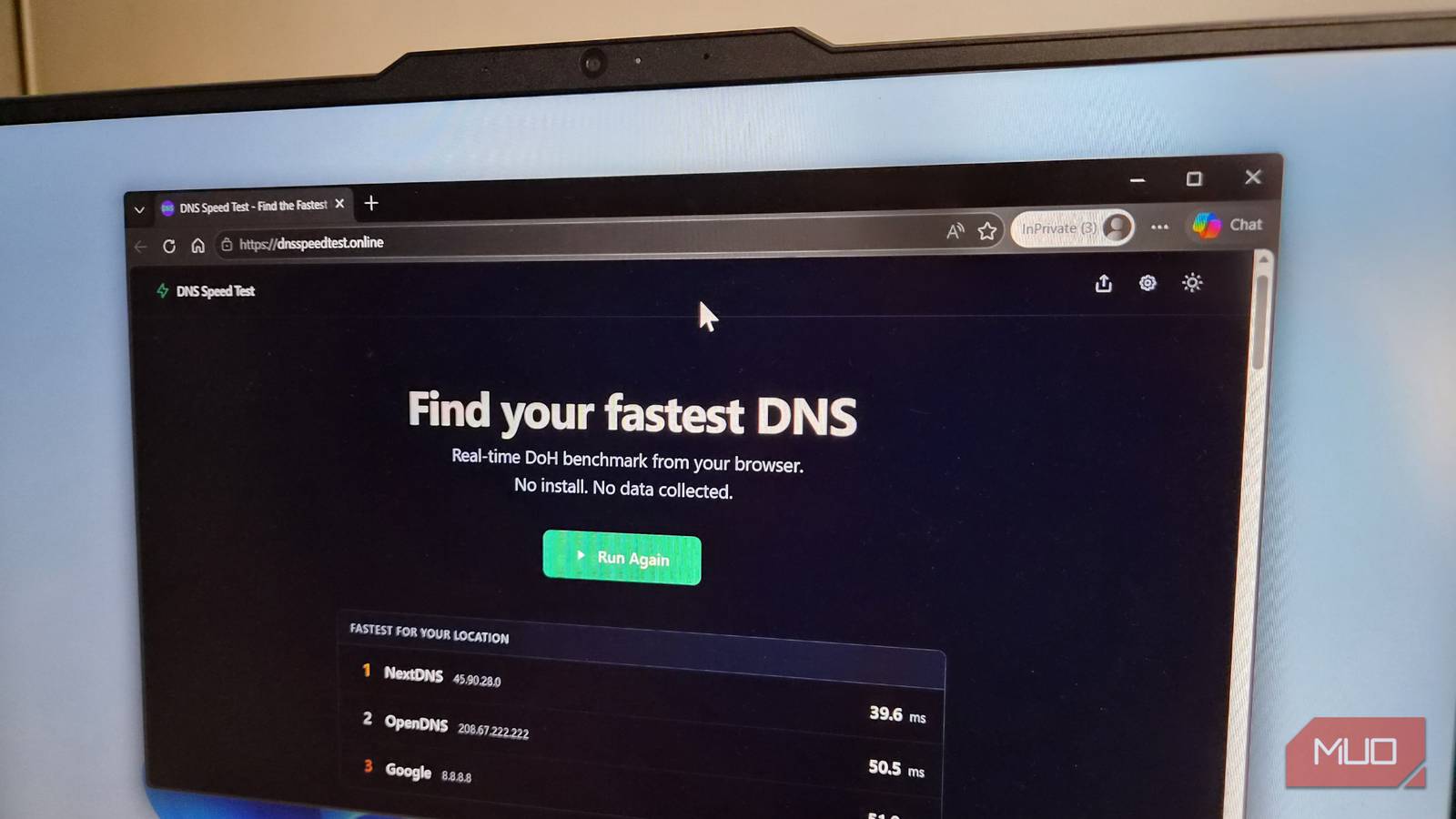
Most DNS benchmarking tools require installation or produce complex raw data that can be confusing. That's where the DNS Speed Test tool shines. It's a completely browser-based utility that tests popular DNS servers from your current network. You don't need to download anything or run any scripts. Just open the website, click the test button, and within 30 seconds you'll see a ranked list of the top three DNS providers for your connection.
How does it work? The tool sends multiple DNS queries to each server after a warm-up phase. This ensures the results reflect real-world performance rather than initial cache misses. It measures minimum, maximum, median, and average response times for each provider. You can then scroll down to see a detailed table of all tested servers, allowing you to compare consistency as well as raw speed.
For the most accurate results, run the test at different times of the day — morning, afternoon, and evening — to account for network congestion. Also, customize the test by editing the list of queried domains. By default, it tests popular sites like Google, YouTube, ChatGPT, and Reddit. These are often cached by DNS providers, which can skew results. Add the websites you visit most frequently to get a true picture of daily performance.
Beyond Speed: What Else to Consider When Choosing a DNS
Security, Privacy, and Extra Features
Speed is important, but it shouldn't be your only criterion. Many third-party DNS providers offer additional features that can significantly enhance your online experience. For example, Quad9 is renowned for its security-first approach. It checks every DNS request against a constantly updated threat intelligence feed, blocking malicious domains that host phishing, malware, or ransomware. This happens automatically, with no configuration needed from your end.
Cloudflare's 1.1.1.1 is famous for its strict no-logs policy and is often among the fastest DNS options. It also supports DNS over HTTPS (DoH) and DNS over TLS (DoT) for encrypted queries. NextDNS offers a balance of speed, security, and customization. It provides a detailed dashboard showing block statistics, you can create allowlists and blocklists, and even set time-based filtering. However, the free version has a query limit, after which it stops working unless you upgrade.
AdGuard DNS bundles ad and tracker blocking right into the DNS layer, which can speed up page loads by filtering out unwanted content before it reaches your browser. CleanBrowsing is an excellent choice for families, with pre-configured filters that block adult content and enforce SafeSearch on Google, YouTube, and Bing. Some providers, like DNSFilter, offer additional categories like social media blocking or gambling filtering.
Also consider pricing. While many DNS providers are free, some like NextDNS have limited free tiers, and others offer premium plans with advanced features. Do you need constant support? Check their uptime records. A fast DNS that goes down frequently is worse than a slightly slower one that's always available.
How DNS Really Works: A Quick Primer
To truly appreciate why DNS benchmarking matters, it helps to understand the process. When you type a URL like www.example.com into your browser, your device sends a query to a DNS resolver. This resolver looks up the corresponding IP address — something like 93.184.216.34 — and returns it. Your browser then connects to that IP to load the website.
The speed of this resolution depends on several factors: the distance between you and the resolver's nearest data center, the efficiency of the resolver's caching algorithm, and how well the resolver's network is connected to your ISP's infrastructure. A resolver with many globally distributed nodes can offer low latency, but if your traffic is routed to a distant node due to poor peering, performance suffers.
This is why testing from your own network is critical. A DNS that performs well for someone in another city may not perform well for you. The DNS Speed Test tool bypasses this uncertainty by measuring actual response times from your location.
Step-by-Step: Testing Your DNS in 30 Seconds
Ready to find your best DNS? Here's a simple walkthrough using the browser-based DNS Speed Test tool. First, open the DNS Speed Test website in your browser. Click the "Start Test" button. The tool will run a warm-up, then query each DNS server in its list. After approximately 30 seconds, you'll see the results, with the top three fastest servers highlighted. Scroll down to view more details.
To get the most accurate recommendations, repeat the test at least twice during different times of day — once in the morning and once in the evening. Also, consider editing the domain list: click the "Edit Domains" button, remove the default sites, and add the five websites you visit most often (e.g., your email provider, news sites, streaming services). Run the test again with your custom list.
Once you've identified a few fast candidates, check their feature sets. If you prioritize privacy, go with Cloudflare or Quad9. If you want ad blocking without browser extensions, try AdGuard. For granular control, NextDNS is excellent. Then, change your device's DNS settings to the new provider. You can do this per device (Windows, macOS, Android, iOS) or at the router level to cover every device on your network.
Why You Shouldn't Stop at One Test
DNS performance isn't static. It can change due to network traffic, server outages, or updates on the provider's side. That's why it's a good practice to rerun the DNS Speed Test every few months, or whenever you notice web pages loading slowly. Also, if you switch to a new internet service provider, your optimal DNS may change completely.
Another factor to consider is fallback. If your chosen DNS server goes down, your device should automatically use a secondary DNS. Most routers allow you to enter two addresses. For example, you might use Cloudflare as primary and Quad9 as secondary. That way, you still have fast, secure resolution even if one provider experiences issues.
In summary, finding the best DNS for your connection doesn't require technical expertise or expensive software. With a free browser-based tool, you can benchmark multiple servers in under 30 seconds and make an informed decision. Remember to test at different times, customize the domains, and weigh speed against features like security and privacy. Your internet experience — and your digital well-being — will thank you.
Source:MakeUseOf News